How to see furniture in your room before you buy
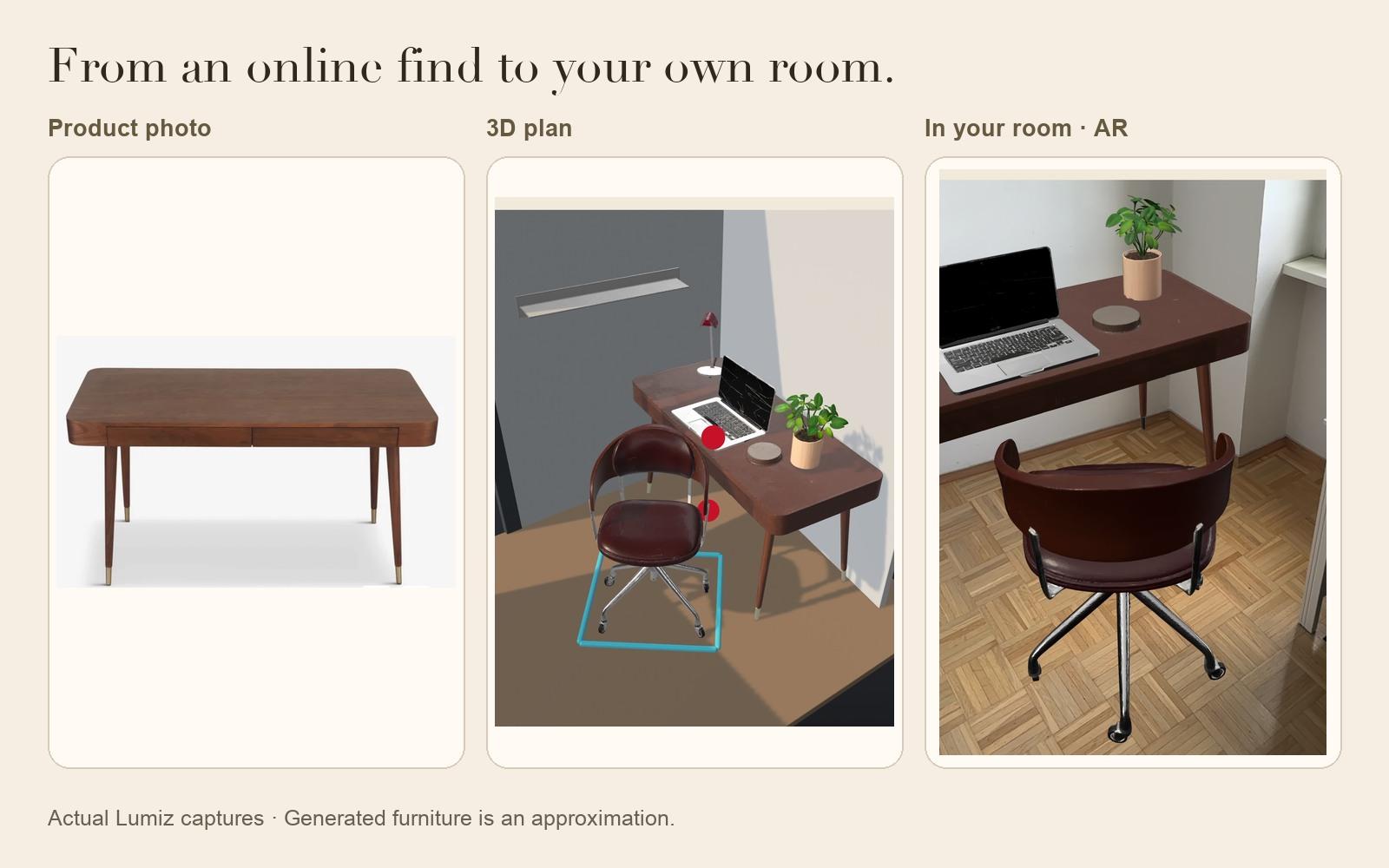
A sofa can look right on a product page and still feel too large once it is in your living room. Before ordering, check its dimensions, try its position in a room plan, and look at it from the places you actually use.
Here is a practical way to do that with Lumiz on iPhone. You can start with one item you are considering.
1. Check the furniture dimensions first
Find the width, depth and height on the retailer's product page. Check that the measurements refer to the furniture itself rather than its packaging, and note whether they include arms, handles or other protruding parts.
Mark the footprint on your floor with a tape measure and removable markers suitable for your flooring. Open nearby doors and drawers, pull out a dining chair if relevant, and walk past the marked area. This gives you a useful reference before opening a digital planner.
2. Create your room in Lumiz
On a compatible LiDAR iPhone, scan the room with Lumiz. Supported iPhones without LiDAR can use manual room measurement. Review the room outline and important openings so your plan reflects the space you have.
If you want to explore the controls first, the sample living room lets you try 3D planning without scanning. The sample is 3D-only; use your own captured or measured room to view your plan in AR.
3. Bring in the piece you found online
- Open the furniture website inside Lumiz, or share its product link from Safari to Lumiz and open the app to continue.
- Choose a clear product image with the whole item visible.
- Confirm the product dimensions and other details against the retailer's information.
- Import a supported retailer 3D model when available, or generate a 3D approximation from the product image.
Image, dimension and model availability varies between retailers. Inspect the resulting model before using it for a decision. Generated shapes, textures and proportions can differ from the actual product, so keep the retailer's measurements as your reference.
4. Arrange it in 3D, then view it in your room
Move and rotate the furniture in the 3D editor. Check its dimensions and the gaps around it. In your own captured or measured room, use View in Room and complete the alignment to see the planned furniture in AR.
Look from the doorway, the sofa or your usual seat. Check whether you can still reach storage, move a chair, and use the route through the room. Confirm important clearances physically with a tape measure: a digital preview helps you assess a plan, but does not guarantee a perfect fit.
5. Compare the options before choosing
Try the alternative position and save images from the same viewpoint. A consistent angle makes the difference easier to judge. With Lumiz Plus, room versions A, B and C let you keep different furniture arrangements in the same room and compare them in 3D and AR.
Start with the question that matters most: does this arrangement leave enough room to move, give you the storage you need, or feel comfortable beside your existing furniture?
A quick check before you order
- Width, depth and height match the product you intend to buy.
- Doors, drawers, chairs and everyday routes still work.
- The item looks suitable beside the furniture you are keeping.
- You have checked delivery access and any assembly requirements separately.
Do I need a LiDAR iPhone?
LiDAR is needed for automatic RoomPlan scanning. Lumiz also supports manual room measurement on supported non-LiDAR iPhones. The app requires iOS 18 or later; check compatibility on the App Store.
Is Lumiz free?
Lumiz is free to download with base usage limits. Optional purchases include Lumiz Plus and additional AI generations. Plus is a one-time purchase, with no subscription. Current limits and prices are shown in the app.
Try Lumiz on your iPhone, or see how the room-planning workflow works.